A search screen is a major part of the systems that we have to build. Once data has been created, it is always necessary to be able to find it again, to modify and view submitted data. Search screens are also used to search and add Contacts and Organisations.
COMPONENTS
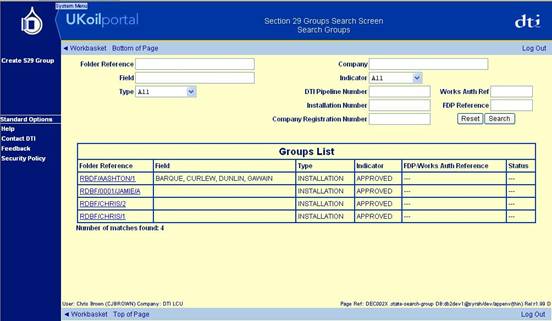
There are 5 main components of a Search Screen Module. They are:
- Layout Module (The module that is libraried into the Search module to give us the standard layout. We use LAYOUT1).
- The search criteria fields (Normally input fields, but can also be map-sets, enumerations and dates).
- The Search and Reset action buttons that fire the query.
- The list of search results.
- A Result Count shown at the bottom of the screen underneath the Result List.
Below is a screenshot of the LAYOUT1 module:
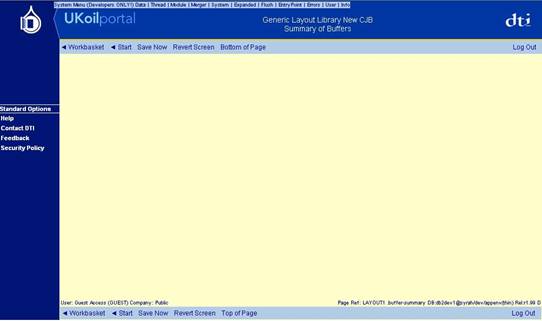
This module determines the layout, borders and classes of all parts of a basic screen. The actions at the top are standard navigation actions stored in buffers. These can be over-ridden to remove the action from a screen as necessary.
A search screen does not create, or modify any data. It simply initialises a schema, and queries data into that schema using restrictions specified in the query. This means a search screen will use a memory only Storage Location. (See Worksheet 33 for examples).
The picture below shows a typical Search Screen Layout with all the important components as listed above:
What Is Needed in The Module?
- Unique Storage Location (Worksheet 33).
- XML Schema for the Search Criteria, and Returned Results. This should be a REPEATING, OPTIONAL complex type, as there will be repeating elements for the search results. (Worksheet 02).
- Query needs to be inside a DB Interface Block, (Worksheet 25). Your bind variables inside the fm:using command will be the search criteria fields, (Worksheet 28). Do not forget to include the fm:target-path command as there will be repeating elements returned, so it is necessary (Worksheet 29).
- Create your actions in the fm:action-list section. Your search action will need to have the fm:run-query command to call your query. You will also need to use PURGE ALL as the mode (Worksheet 32). Your Reset action will need to use fm:remove to clear the search fields and the results list. It will then need to re-initialise everything (Worksheets 11 and 13).
- To get the “Number of matches found: “ line, you will need to hard code the text, and use an fm:expr-out command to set the value returned from the Theme DOM. NB: In the Sys DOM there is a element called rowcount, within sqlquery. This needs to be assigned to an element in the Theme DOM immediately after the query has been run. This is to prevent this value being corrupted by other queries.
- Your presentation block at state level will need two set out commands, one for the search criteria, and one for the results list (Worksheet 03). It will also need either an action-out or a menu-out to set the actions onto the screen (Worksheets 08 and 23).
- Phantom elements (Worksheet 14) can be used within lists to perform an action for that specific row. E.G. To pick a row and open another module to get further information, or return data to another module. The phantom should be declared on the schema, and the action should be declared in the module level action-list. Remember to put the action attributes on the phantom element.
- If you are returning data to another module, for example, searching for a contact and then adding them to a previous modules data. The data you want to get needs to be copied to the Return DOM, and can then be used in the Result DOM of the previous module, (Worksheet 43). The processing of the Result DOM is usually done in the callback-action of the module call command. Phantoms are excellent for this job as they attach to one row, and can only see what they are attached to.
- Another way of returning data could be to use checkboxes for each row. There would then be an action that copied all rows where the checkbox is true to the Return DOM. The processing would then carry on in the same way. This is the only way you can select more than 1 row and return it to the previous module.
Incremental multiple selection. Fm:remove, and DB Interface primary keys.
When a search is done in order to add to another list, a tickbox is used in order to select the ones you want to be passed on. In order to be more efficient in this and not have to add one or just a couple of results at a time, you can use what is called incremental multiple selection. This allows you to perform a search under one criterion, and then select the ones you want to keep and perform another search with different criteria. This means that you can add all the results you want in one go.
There are two methods to do this, the first one is to not remove ones that you have already been selected to save, and perform an add-to method of search. There is one problem of this, when identical results are returned from two different sets of criteria, you can actually select the same person twice.
The other method to do this is to pass in the primary keys of the ones that are already selected into the query that is searching with the new criteria. This is effectively an augment method. This way you will not get duplicate results.
EXERCISES
Exercise 1
Make a search screen that searches the employee_search table (on schema SCOTT). It should utilise LAYOUT1, so it displays similarly to the pictures on this worksheet. It should be able to search based on all available columns except ID. A Search and Reset button are required on the module. After searching, the list of results should display under the search criteria and should display the number of rows retrieved from the search underneath. The Title and Gender columns should utilise optional map-sets (either from data stored on the database or using templates).
Once complete, it should look similar to the picture above.